预览
警告要求
:::
在开发应用程序时,您可能希望与他人分享以获得反馈。传统上,团队会通过构建、签名并将应用程序推送到 Apple 的 TestFlight 等平台来实现这一目的。然而,这个过程可能会很繁琐和缓慢,尤其是当您只是想从同事或朋友那里获得快速反馈时。
为了简化这一过程,Tuist 提供了一种生成并与任何人共享应用程序预览的方法。
DEVICE BUILDS NEED TO BE SIGNED
目前,在为设备构建应用程序时,您有责任确保应用程序已正确签名。我们计划在未来简化这项工作。
代码组
tuist generate App
xcodebuild build -scheme App -workspace App.xcworkspace -configuration Debug -sdk iphonesimulator # Build the app for the simulator
xcodebuild build -scheme App -workspace App.xcworkspace -configuration Debug -destination 'generic/platform=iOS' # Build the app for the device
tuist share Appxcodebuild -scheme App -project App.xcodeproj -configuration Debug # Build the app for the simulator
xcodebuild -scheme App -project App.xcodeproj -configuration Debug -destination 'generic/platform=iOS' # Build the app for the device
tuist share App --configuration Debug --platforms iOS
tuist share App.ipa # Share an existing .ipa file:::
该命令将生成一个链接,你可以与任何人共享该链接,让他们在模拟器或实际设备上运行应用程序。他们只需运行下面的命令即可:
tuist run {url}
tuist run --device "My iPhone" {url} # Run the app on a specific device共享.ipa 文件时,可以使用预览链接直接从移动设备下载应用程序。.ipa 预览链接默认为_公共_ 。将来,您可以选择将其设置为私有,这样链接的接收者就需要使用 Tuist 帐户进行身份验证才能下载应用程序。
tuist run 还能根据指定符运行最新预览,如latest 、分支名称或特定提交哈希值:
tuist run App@latest # Runs latest App preview associated with the project's default branch
tuist run App@my-feature-branch # Runs latest App preview associated with a given branch
tuist run App@00dde7f56b1b8795a26b8085a781fb3715e834be # Runs latest App preview associated with a given git commit sha
UNIQUE BUILD NUMBERS IN CI
利用大多数 CI 提供商公开的 CI 运行编号,确保CFBundleVersion (构建版本)是唯一的。例如,在 GitHub Actions 中,可以将CFBundleVersion 设置为 ${{ github.run_number }} 变量。
上传具有相同二进制文件(构建)和相同CFBundleVersion 的预览将失败。
轨道
轨迹允许你将预览组织到命名的组中。例如,你可以为内部测试人员创建beta 跟踪,为自动构建创建nightly 跟踪。轨迹可以轻松创建--只需在共享时指定一个轨迹名称,如果不存在,它就会自动创建。
要共享特定轨道上的预览,请使用--track 选项:
tuist share App --track beta
tuist share App --track nightly
这对以下方面很有用
- 组织预览 :按目的对预览进行分组(例如,
beta,nightly,internal) - 应用内更新 :Tuist SDK 使用轨迹来决定通知用户哪些更新
- 过滤 :在 Tuist 面板中按曲目轻松查找和管理预览
PREVIEWS' VISIBILITY
只有拥有项目所属组织权限的人才能访问预览。我们计划添加对过期链接的支持。
Tuist macOS 应用程序
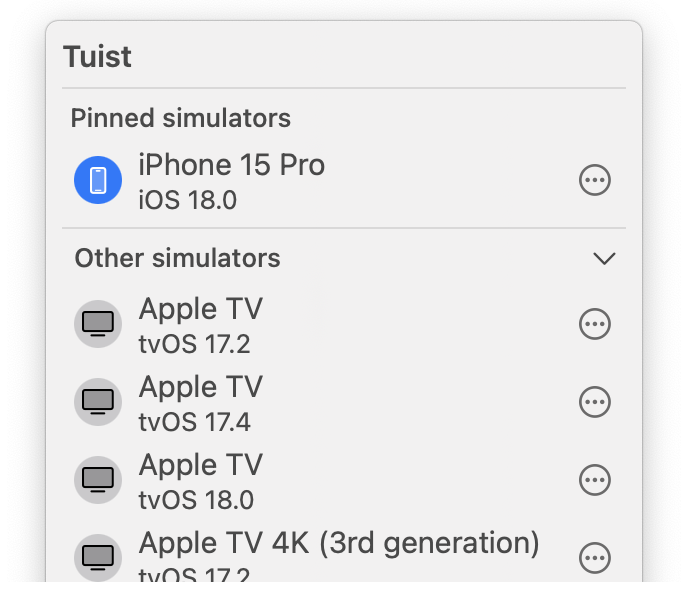
为了让运行 Tuist 预览变得更加简单,我们开发了一个 Tuist macOS 菜单栏应用程序。您可以 下载 macOS 应用程序,而无需通过 Tuist CLI 运行预览。您也可以通过运行brew install --cask tuist/tuist/tuist 来安装该应用。
现在点击预览页面中的 "运行",macOS 应用程序就会自动在当前选定的设备上启动。
警告要求
您需要在本地安装 Xcode,并使用 macOS 14 或更高版本。
:::
Tuist iOS 应用程序

Tuist
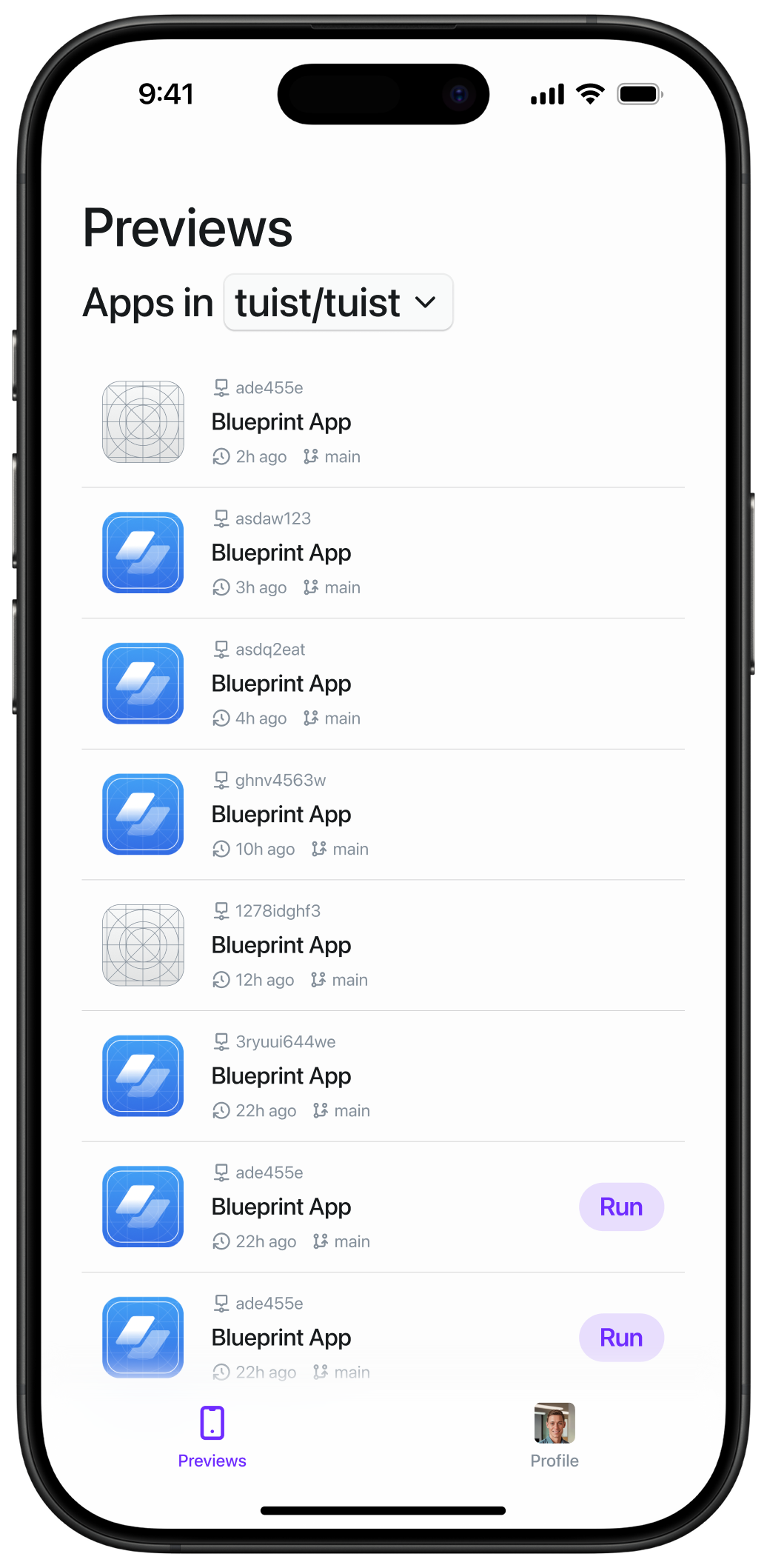

与 macOS 应用程序类似,Tuist iOS 应用程序也能简化预览的访问和运行。
拉取/合并请求注释
测试新功能应该是代码审查的一部分。但必须在本地构建应用程序会增加不必要的麻烦,这往往会导致开发人员根本不在自己的设备上测试功能。但是,,如果每个拉取请求都包含一个指向构建的链接,可以在 Tuist macOS 应用程序中选择的设备上自动运行应用程序呢?
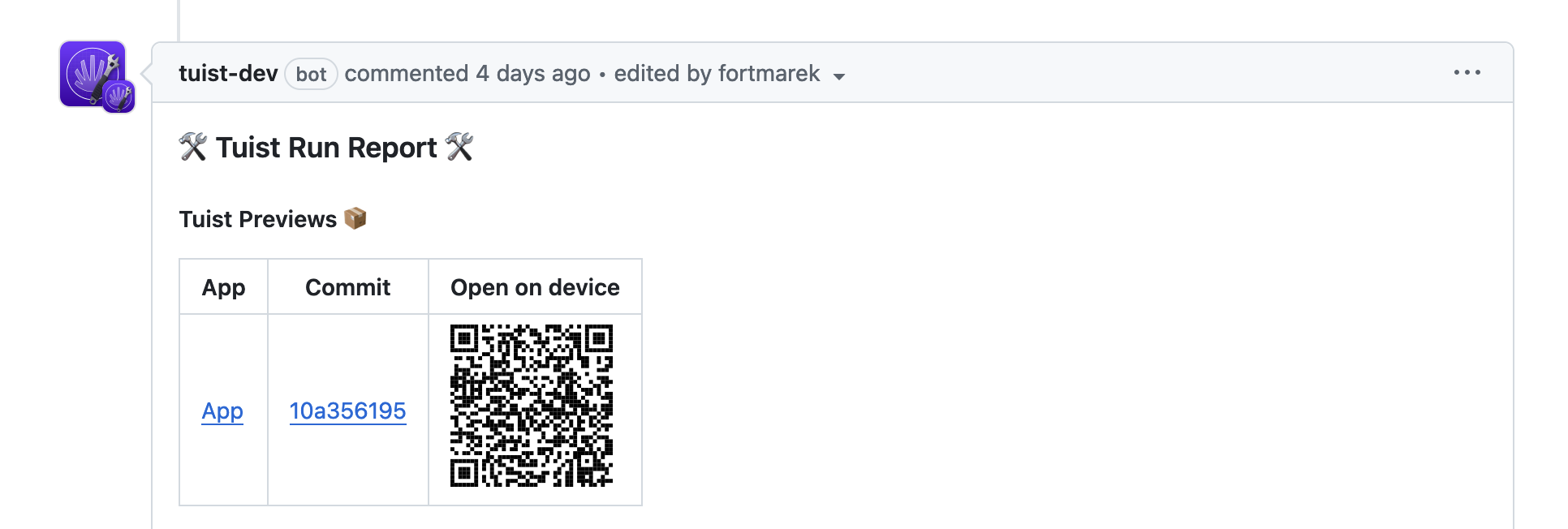
一旦您的 Tuist 项目与 GitHub 等 Git 平台连接,请在 CI 工作流中添加
`tuist share MyApp`。然后,Tuist会直接在您的拉取请求中发布预览链接:!带有 Tuist 预览链接的 GitHub 应用程序注释。
应用内更新通知
Tuist SDK](https://github.com/tuist/sdk) 可让您的应用程序检测到更新的预览版本,并通知用户。这对于让测试人员使用最新版本非常有用。
SDK 会检查同一预览轨道 中的更新。当您使用--track 将预览与明确的轨道共享时,SDK 会在该轨道上查找更新。如果未指定轨道,则使用 git 分支作为轨道,因此从main 分支构建的预览只会通知同样从main 构建的更新预览。
安装
将 Tuist SDK 添加为 Swift 软件包依赖项:
.package(url: "https://github.com/tuist/sdk", .upToNextMajor(from: "0.1.0"))监测更新
使用monitorPreviewUpdates 定期检查新的预览版本:
import TuistSDK

struct MyApp: App {
    var body: some Scene {
        WindowGroup {
            ContentView()
                .task {
                    TuistSDK(
                        fullHandle: "myorg/myapp",
                        apiKey: "your-api-key"
                    )
                    .monitorPreviewUpdates()
                }
        }
    }
}
单次更新检查
用于手动更新检查:
let sdk = TuistSDK(
    fullHandle: "myorg/myapp",
    apiKey: "your-api-key"
)

if let preview = try await sdk.checkForUpdate() {
    print("New version available: \(preview.version ?? "unknown")")
}
停止更新监控
monitorPreviewUpdates 返回一个可取消的任务 :
let task = sdk.monitorPreviewUpdates { preview in
    // Handle update
}

// Later, to stop monitoring:
task.cancel()
信息
在模拟器和 App Store 版本中,更新检查会自动禁用。
:::
README 徽章
为了让 Tuist 预览版在你的版本库中更显眼,你可以在README 文件中添加一个徽章,指向最新的 Tuist 预览版:
[!Tuist Preview](https://tuist.dev/Dimillian/IcySky/previews/latest)
要在README 中添加徽章,请使用以下标记符,并用自己的账户和项目句柄替换:
[](https://tuist.dev/{account-handle}/{project-handle}/previews/latest)如果您的项目包含多个具有不同捆绑标识符的应用程序,您可以通过添加bundle-id 查询参数来指定链接到哪个应用程序的预览:
[](https://tuist.dev/{account-handle}/{project-handle}/previews/latest?bundle-id=com.example.app)自动化
您可以使用--json 标志从tuist share 命令获取 JSON 输出:
tuist share --jsonJSON 输出有助于创建自定义自动化,例如使用 CI 提供商发布 Slack 消息。JSON 包含一个url 密钥和一个qrCodeURL 密钥,前者是完整预览链接,后者是二维码图片的 URL,以便于从真实设备下载预览。下面是一个 JSON 输出示例:
{
  "id": 1234567890,
  "url": "https://cloud.tuist.io/preview/1234567890",
  "qrCodeURL": "https://cloud.tuist.io/preview/1234567890/qr-code.svg"
}