
Slack integration
If your organization uses Slack, you can integrate Tuist to surface insights directly in your channels. This turns monitoring from something your team has to remember to do into something that just happens. For example, your team can receive daily summaries of build performance, cache hit rates, or bundle size trends.
Setup
Connect your Slack workspace
First, connect your Slack workspace to your Tuist account in the Integrations tab:
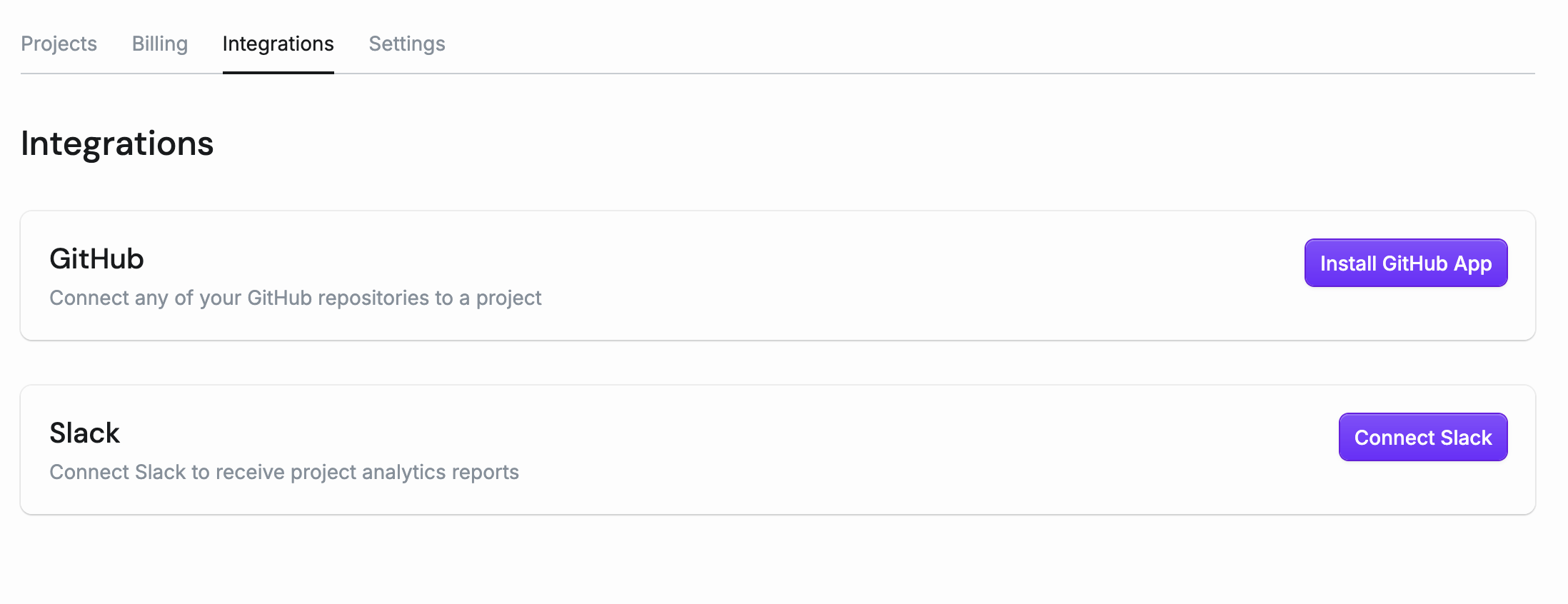
Click Connect Slack to authorize Tuist to post messages to your workspace. This will redirect you to Slack's authorization page where you can approve the connection.
SLACK ADMIN APPROVAL
If your Slack workspace restricts app installations, you may need to request approval from a Slack administrator. Slack will guide you through the approval request process during authorization.
Project reports
After connecting Slack, configure reports for each project in the project settings' notifications tab:
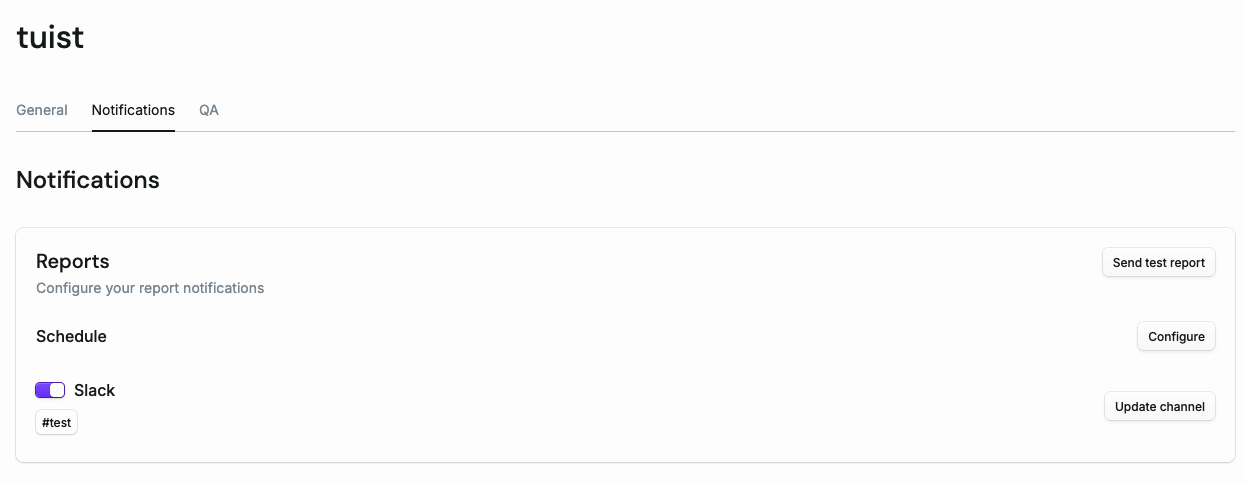
You can configure:
- Channel: Select which Slack channel receives the reports
- Schedule: Choose which days of the week to receive reports
- Time: Set the time of day
PRIVATE CHANNELS
For the Tuist Slack app to post messages in a private channel, you must first add the Tuist bot to that channel. In Slack, open the private channel, click the channel name to open settings, select "Integrations", then "Add apps" and search for Tuist.
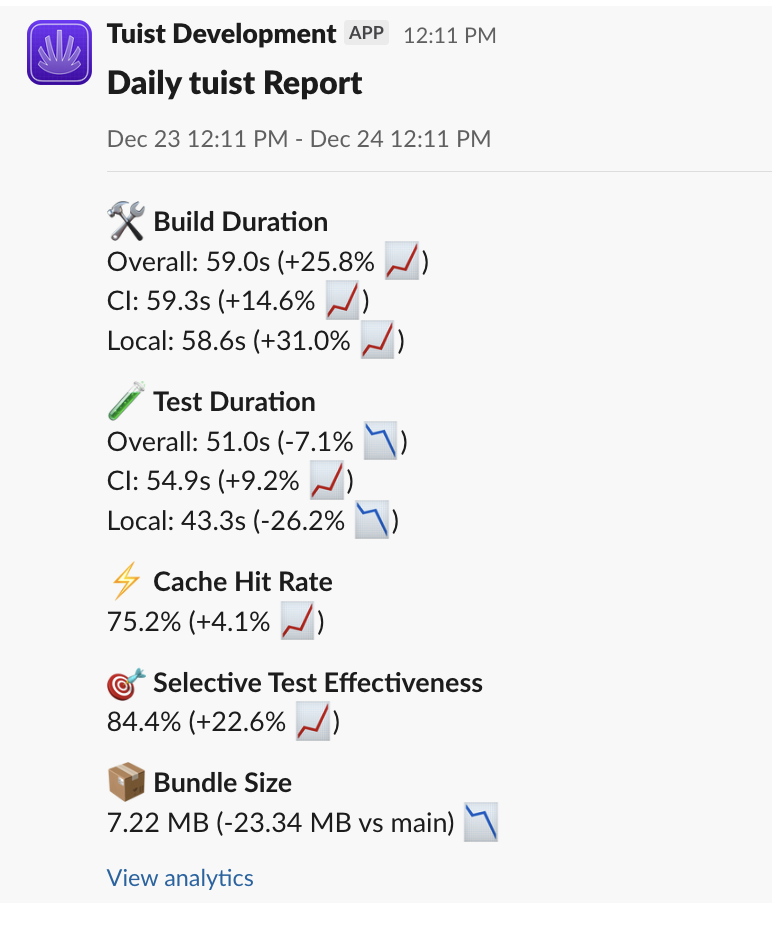
Once configured, Tuist sends automated daily reports to your selected Slack channel:
Alert rules
Get notified in Slack with alert rules when key metrics significantly regress to help you catch slower builds, cache degradation, or test slowdowns as soon as possible, minimizing the impact on your team's productivity.
To create an alert rule, go to your project's notification settings and click Add alert rule:
You can configure:
- Name: A descriptive name for the alert
- Category: What to measure (build duration, test duration, or cache hit rate)
- Metric: How to aggregate the data (p50, p90, p99, or average)
- Deviation: The percentage change that triggers an alert
- Rolling window: How many recent runs to compare against
- Slack channel: Where to send the alert
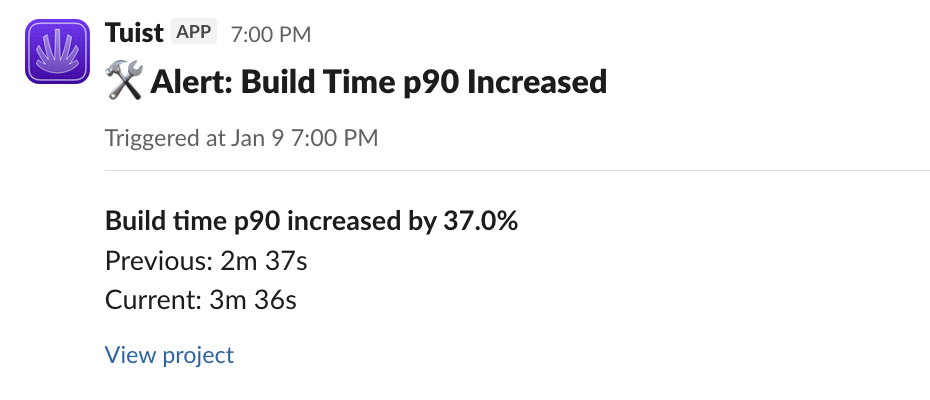
For example, you might create an alert that triggers when the p90 build duration increases by more than 20% compared to the previous 100 builds.
When an alert triggers, you'll receive a message like this in your Slack channel:
COOLDOWN PERIOD
After an alert triggers, it won't fire again for the same rule for 24 hours. This prevents notification fatigue when a metric stays elevated.
Flaky test alerts
Get notified instantly when a test becomes flaky. Unlike metric-based alert rules that compare rolling windows, flaky test alerts trigger the moment Tuist detects a new flaky test, helping you catch test instability before it impacts your team.
To create a flaky test alert rule, go to your project's notification settings and click Add flaky test alert rule:
You can configure:
- Name: A descriptive name for the alert
- Trigger threshold: The minimum number of flaky runs in the last 30 days required to trigger an alert
- Slack channel: Where to send the alert
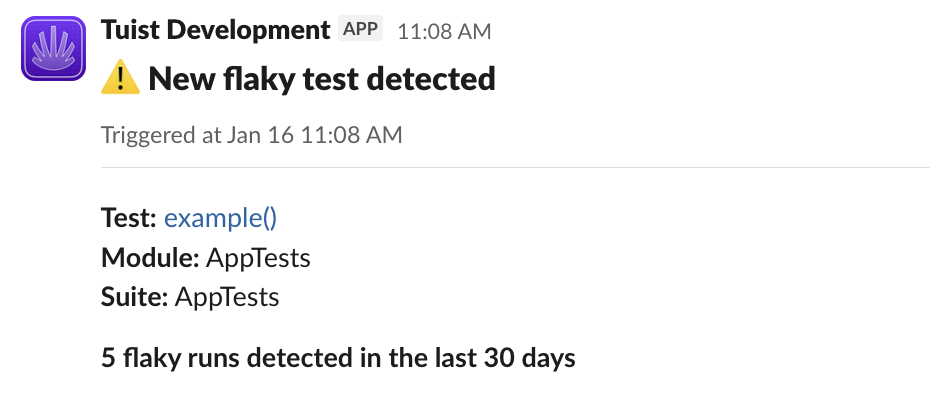
When a test becomes flaky and meets your threshold, you'll receive a notification with a direct link to investigate the test case:
On-premise installations
For on-premise Tuist installations, you'll need to create your own Slack app and configure the necessary environment variables.
Create a Slack app
- Go to the Slack API Apps page and click Create New App
- Choose From an app manifest and select the workspace where you want to install the app
- Paste the following manifest, replacing the redirect URL with your Tuist server URL:
{
    "display_information": {
        "name": "Tuist",
        "description": "Get regular updates and alerts for your builds, tests, and caching.",
        "background_color": "#6f2cff"
    },
    "features": {
        "bot_user": {
            "display_name": "Tuist",
            "always_online": false
        }
    },
    "oauth_config": {
        "redirect_urls": [
            "https://your-tuist-server.com/integrations/slack/callback"
        ],
        "scopes": {
            "bot": [
                "chat:write",
                "chat:write.public"
            ]
        }
    },
    "settings": {
        "org_deploy_enabled": false,
        "socket_mode_enabled": false,
        "token_rotation_enabled": false
    }
}- Review and create the app
Configure environment variables
Set the following environment variables on your Tuist server:
SLACK_CLIENT_ID- The Client ID from your Slack app's Basic Information pageSLACK_CLIENT_SECRET- The Client Secret from your Slack app's Basic Information page