添加依赖项
项目通常依赖第三方库来提供额外功能。为此,请运行以下命令,以获得最佳的项目编辑体验:
bash
tuist edit将打开一个包含项目文件的 Xcode 项目。编辑Package.swift 并添加
swift
// swift-tools-version: 5.9
import PackageDescription
#if TUIST
import ProjectDescription
let packageSettings = PackageSettings(
// Customize the product types for specific package product
// Default is .staticFramework
// productTypes: ["Alamofire": .framework,]
productTypes: [:]
)
#endif
let package = Package(
name: "MyApp",
dependencies: [
// Add your own dependencies here:
// .package(url: "https://github.com/Alamofire/Alamofire", from: "5.0.0"),
// You can read more about dependencies here: https://docs.tuist.io/documentation/tuist/dependencies
.package(url: "https://github.com/onevcat/Kingfisher", .upToNextMajor(from: "7.12.0"))
]
)然后编辑项目中的应用程序目标,将Kingfisher 声明为依赖关系:
swift
import ProjectDescription
let project = Project(
name: "MyApp",
targets: [
.target(
name: "MyApp",
destinations: .iOS,
product: .app,
bundleId: "dev.tuist.MyApp",
infoPlist: .extendingDefault(
with: [
"UILaunchStoryboardName": "LaunchScreen.storyboard",
]
),
buildableFolders: [
"MyApp/Sources",
"MyApp/Resources",
],
dependencies: [
.external(name: "Kingfisher")
]
),
.target(
name: "MyAppTests",
destinations: .iOS,
product: .unitTests,
bundleId: "dev.tuist.MyAppTests",
infoPlist: .default,
sources: ["MyApp/Tests/**"],
resources: [],
dependencies: [.target(name: "MyApp")]
),
]
)然后运行tuist install ,使用Swift 软件包管理器解析并提取依赖项。
信息 SPM 作为依赖解决程序
Tuist 推荐的依赖关系处理方法仅使用 Swift 包管理器 (SPM) 来解决依赖关系。然后,Tuist 将它们转换为 Xcode 项目和目标,以实现最大程度的可配置性和可控性。
:::
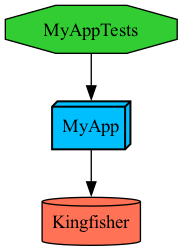
可视化项目
您可以通过运行
bash
tuist graph该命令将输出并打开项目目录下的graph.png 文件:
 !
!
使用依赖项
运行tuist generate 在 Xcode 中打开项目,并对ContentView.swift 文件进行以下修改:
swift
import SwiftUI
import Kingfisher
public struct ContentView: View {
public init() {}
public var body: some View {
Text("Hello, World!")
.padding()
KFImage(URL(string: "https://cloud.tuist.io/images/[email protected]")!)
}
}
struct ContentView_Previews: PreviewProvider {
static var previews: some View {
ContentView()
}
}在 Xcode 中运行应用程序,您应该会看到从 URL 加载的图像。